01User guide
DAEDALUS user guide
DAEDALUS turns scattered clues (an alias, an email, a domain, a wallet…) into a graph you can explore, expand and reason about. This guide covers everything you can do from the web interface. For installation, configuration, the REST API and extending DAEDALUS, see the technical documentation.
01Key concepts
| Concept | What it is |
|---|---|
| Investigation | A case: one graph with its entities, links, notes and layout. You can keep as many as you like and switch between them from the top bar. |
| Entity | A node of the graph: a person, alias, email, phone, domain, IP, URL, wallet, hash, location… There are 20 types (see the reference). Each entity has a value, properties, notes and an optional bookmark. |
| Seed | An entity you added yourself. Seeds are drawn larger with a gold ring. |
| Link | A labelled, directed relationship between two entities (teolabrys —has account→ GitHub · teolabrys). Transforms create links; you can also draw them by hand (shown dashed). |
| Property | A fact attached to an entity (registrar, open ports, followers, balance…). Shown in the inspector. |
| Transform | An action that takes one entity and discovers related entities or properties, usually by querying a public source. There are 46 built in. |
| Machine | A scripted chain of transforms that walks outwards from your seeds over several stages. |
| Ariadne's thread | The path finder: it shows every route that connects two entities through the graph. |
02First steps
- Start DAEDALUS (
./start.sh,start.bat,daedalusor Docker, see the technical docs) and openhttp://127.0.0.1:8787. If the instance is protected, your browser asks for credentials: any user name and the configured password. - Choose your language in Settings → Language. English is the default; Spanish is also available. The EN/ES button in the top bar switches between them too. The choice is saved with the installation.
- Create an investigation with + New (a first one is created automatically).
- Want a guided tour? Click Import and pick
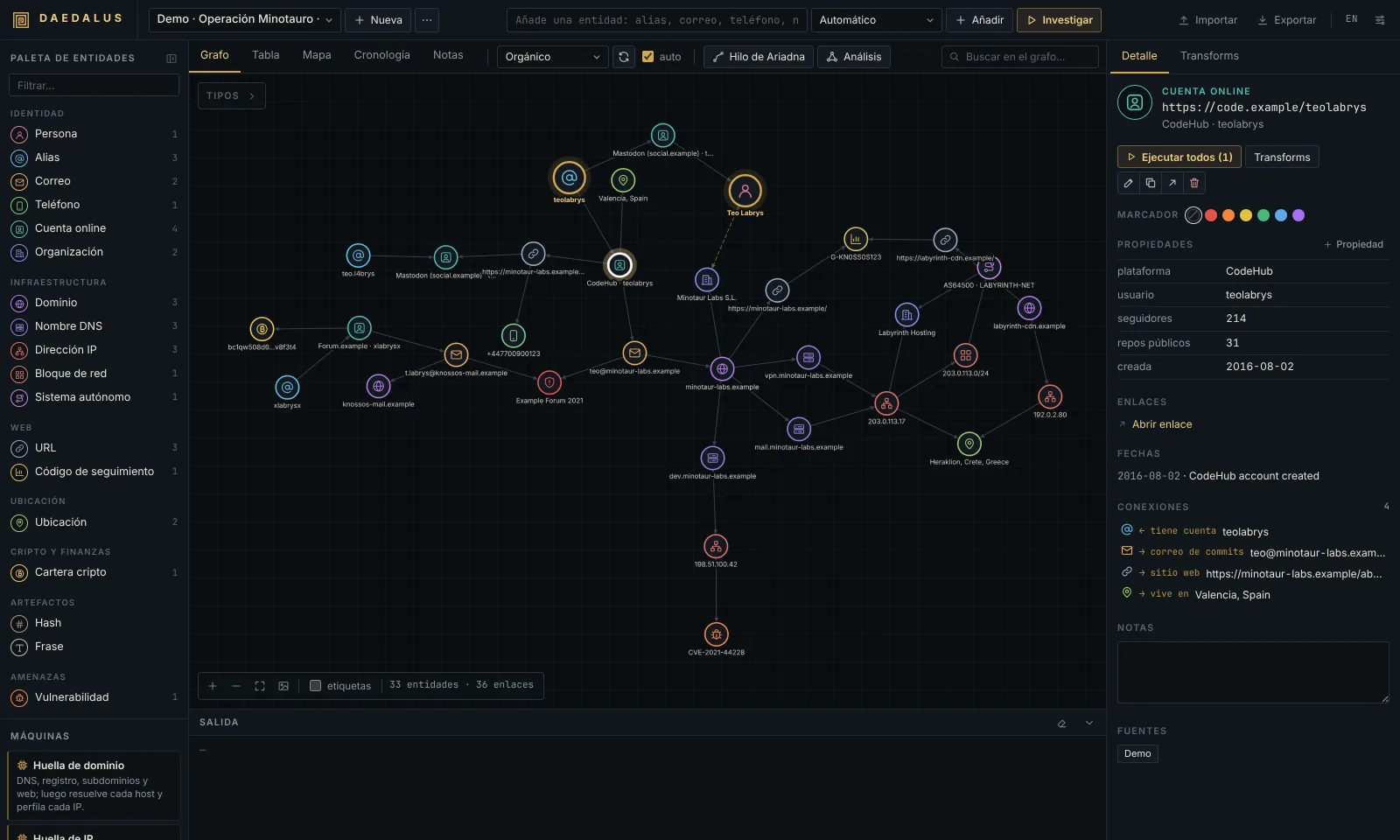
examples/operation-minotaur.jsonfrom the repository: a small fictional case (every person,.exampledomain and documentation-range IP in it is made up) that you can use to try every feature without querying anything.
03The workspace
| Area | Where | What for |
|---|---|---|
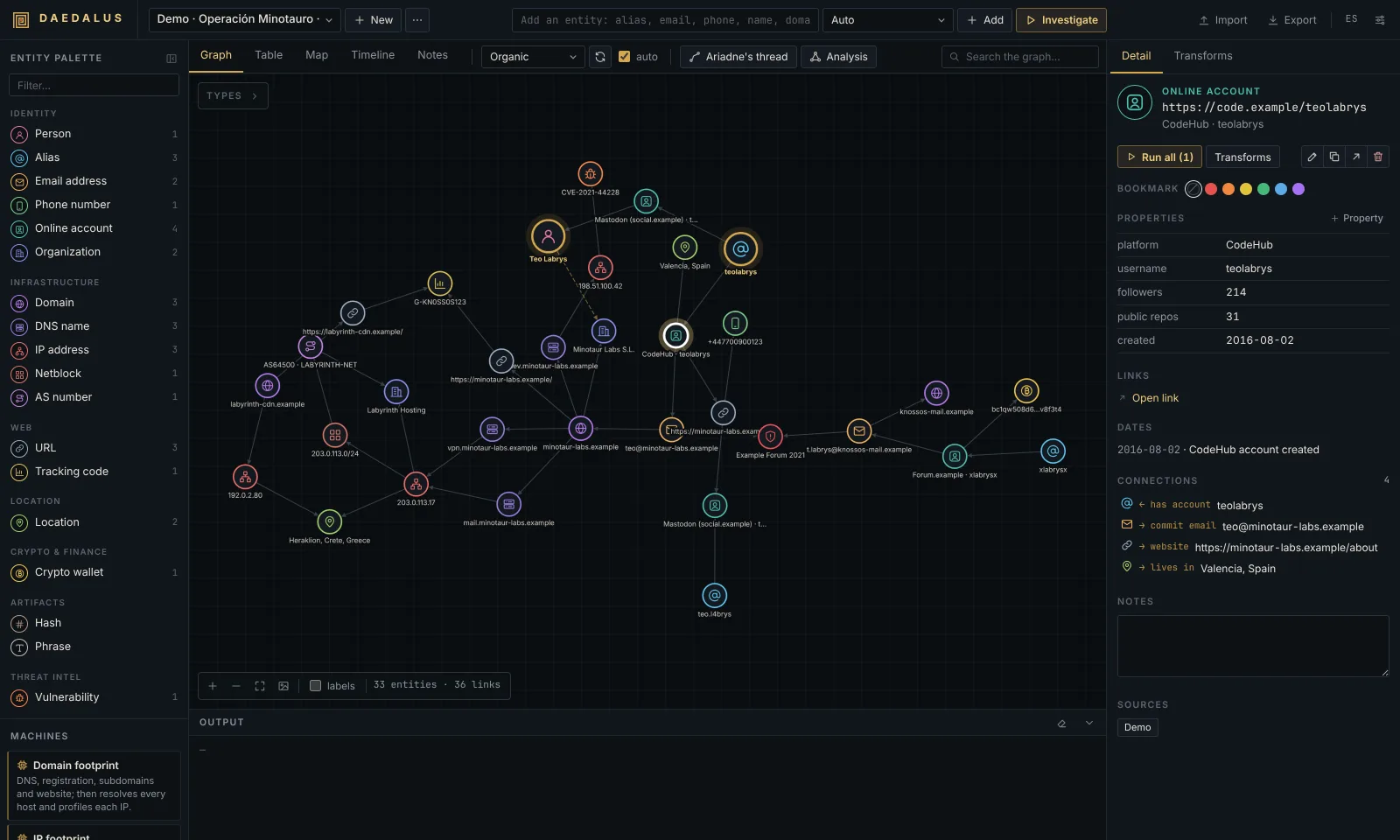
| Top bar | top | Investigation selector, + New, ⋯ (rename / delete), the quick-add bar, Import, Export, language switch and Settings. |
| Entity palette | left | Every entity type you can create (with how many the case has), the list of machines and the image drop zone. The button next to its title folds it into a rail of type icons (still clickable and draggable); on windows narrower than 1100 px it starts folded. |
| Toolbar | above the canvas | View tabs (Graph, Table, Map, Timeline, Notes), layout selector, Re-layout, auto layout, Ariadne's thread, Analysis and the graph search box. |
| Canvas | centre | The graph. The Types box (top left) lists the entity types present and lets you hide them; the bottom-left bar has zoom, Fit, PNG, link labels and counters. |
| Inspector | right | Detail of the selected entity (properties, links, dates, connections, notes, history) and the Transforms panel. |
| Output | bottom | Live log of every transform run with its status, plus a progress bar and Cancel while jobs are running. |
04Adding and editing entities
Quick add
Type anything in the top bar and press Enter (or Add). DAEDALUS recognises the type automatically and shows
it in the selector (Auto · IP address); pick another type in the selector if the guess is wrong.
Investigate adds the entity and runs every default transform on it in one go.
Recognised automatically: URLs, emails, IPv4/IPv6, CIDR netblocks, AS… numbers, CVE-… identifiers, analytics
tracking codes (UA-, G-, GTM-, ca-pub-), lat, lon coordinates, Bitcoin/Ethereum/Litecoin/Dogecoin/Tron/Monero
addresses, MD5/SHA hashes, phone numbers, domains and DNS names, names written as Name Surname, aliases and,
as a last resort, free-text phrases. The full list with examples is in the reference.
Other ways to add
- Palette: click a type to open the New entity dialog, or drag it onto the canvas to create it exactly where you drop it.
- Canvas right-click → Add entity here: choose the type from the menu.
- Photos: drop an image on the canvas or on the palette's Image (EXIF/GPS) zone. DAEDALUS extracts camera, dates, author and GPS position, and creates the image plus its SHA-256 hash, the location where it was taken and the people named in its metadata (author, owner, copyright).
Editing
Select an entity to see it in the inspector:
- ✎ Edit value renames it. If another entity of the same type already has that value, both are merged.
- + property adds a custom property; hover a property and click ✕ to remove it.
- Notes are saved automatically as you type.
- Bookmark: six colours that draw a ring around the node, useful to tag "confirmed", "to review", "suspect"…
- ↗ Link to… (also in the right-click menu) starts link mode: click the target entity and give the link a label. Right-click a link to rename or delete it.
- ⧉ copies the value; ✕ deletes the entity.
05Running transforms
Where to run them
- Right-click an entity (or a selection): the menu groups the transforms that apply by category (DNS, Infrastructure, Web, Identity, Social, Search, Location, Blockchain, Threat intel) plus Run all and Machines.
- Transforms panel (inspector, or double-click a node): the same list with a description and the result of the last run of each transform on that entity. Use the filter box to find one quickly.
- Run all runs every transform marked default (a few noisy ones, such as name permutations, archived files or wallet counterparties, only run when you pick them explicitly).
Running on a selection applies each transform to every selected entity it accepts.
What happens
Results stream in live. New entities appear around the entity that produced them, linked with a label that explains the relationship. Entities that already existed are reused and their properties merged, so the graph never duplicates the same email or domain. When the job ends, the graph re-layouts itself if auto is ticked.
Each run is logged in Output and in the entity's Transforms run history:
| Status | Meaning |
|---|---|
| ✓ ok | Found something (the number shows how many results). |
| ∅ empty | The source answered but had nothing. |
| ⏭ skipped | Could not run: missing API key, rate limit, unsupported input… The message says why. |
| ✕ error | Network error, timeout or unexpected answer. |
Result limit
The Limit selector of the Transforms panel (12 / 50 / 255 / 1000) caps how many entities a single run may add, like Maltego's slider. When a run hits it, the message says limit reached. The value you pick there lasts until you reload the page; the permanent default is in Settings → General.
Keys and locked transforms
Transforms that need an API key show 🔑 with the key's name and are dimmed until you add it; clicking one opens Settings → API keys. Most transforms (41 of 46) need no key at all.
Sites that blocked the check
The account sweep double-checks every hit against a random alias to throw away sites that say "yes" to everything. Sites that blocked the automatic check (captcha, WAF, rate limit) are listed under To check by hand in the alias's detail, with a link to open each profile yourself.
Cancelling
Cancel in the Output bar stops every running job of the current investigation. What was already found stays.
06Machines
Machines chain transforms over several stages: stage 1 runs on the seeds, and each following stage only on what the previous one produced. Launch them from the right-click menu, from the Transforms panel or from the palette (with entities selected).
| Machine | Use it on | What it does |
|---|---|---|
| Domain footprint | domain | DNS, registration, subdomains, website, security.txt and archive; then resolves every host and profiles each IP. |
| IP footprint | IP, netblock | Owner, network, location, exposed services and names hosted on the IP. |
| Identity footprint | alias, email, phone, person | Accounts, profiles, breaches and new aliases, two levels deep. |
| Website footprint | URL, domain, DNS name | Contacts, profiles and trackers on the site, then one step into the linked domains. |
| Labyrinth | anything | Runs every default transform and keeps walking outwards for 1-3 levels (choose in the Transforms panel). |
Every machine stops expanding when it reaches Settings → General → Max entities per machine (60 by default), so an auto-expansion cannot run away. The exact stages are in the reference.
07Navigating the graph
- Select: click a node; Ctrl/⌘ + click adds to the selection; Shift + drag draws a selection box; Ctrl+A selects everything visible.
- Hover a node to highlight its neighbourhood and show the labels of its links.
- Layouts (toolbar): Organic (force-directed, the default), Hierarchical (top-down tree), Radial (around the seeds), Circular, Concentric (most connected in the centre) and Blocks by type. Re-layout recomputes it from scratch. Untick auto if you prefer to keep your manual arrangement after each transform. Node positions are saved with the investigation.
- Search the graph (toolbar): highlights matching nodes; Enter jumps from one match to the next.
- Types box: click a type to hide or show it (handy to remove noise such as URLs or breaches).
- Right-click → Select neighbours expands the selection one hop; Isolate neighbourhood dims everything except the selection and its direct neighbours; Similar entities highlights entities that share many neighbours with the selected one.
- labels (bottom bar) shows every link label permanently. Fit (or F) frames the whole graph; Esc clears selection and highlights.
08Ariadne's thread: finding paths
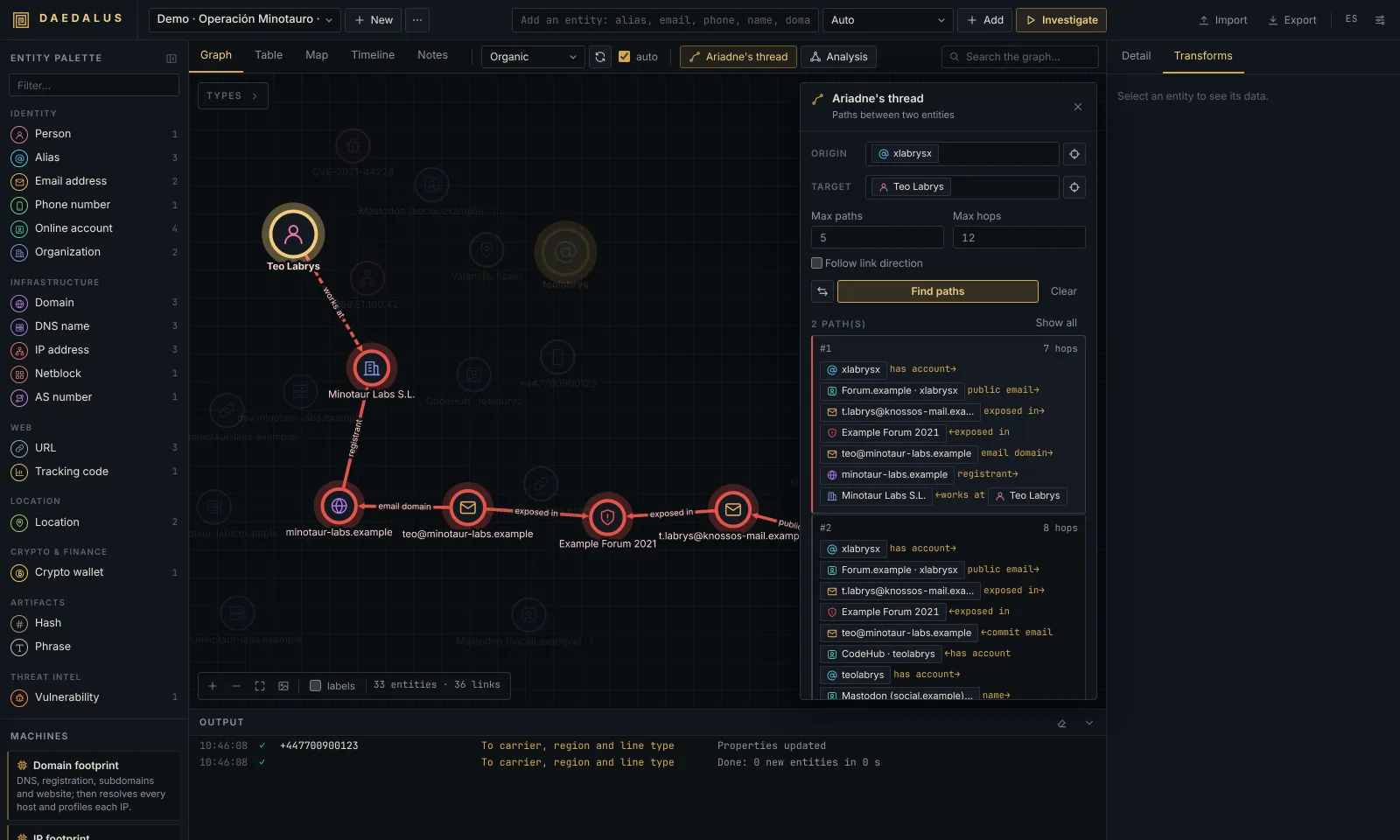
Ariadne answers "how is A connected to B?".
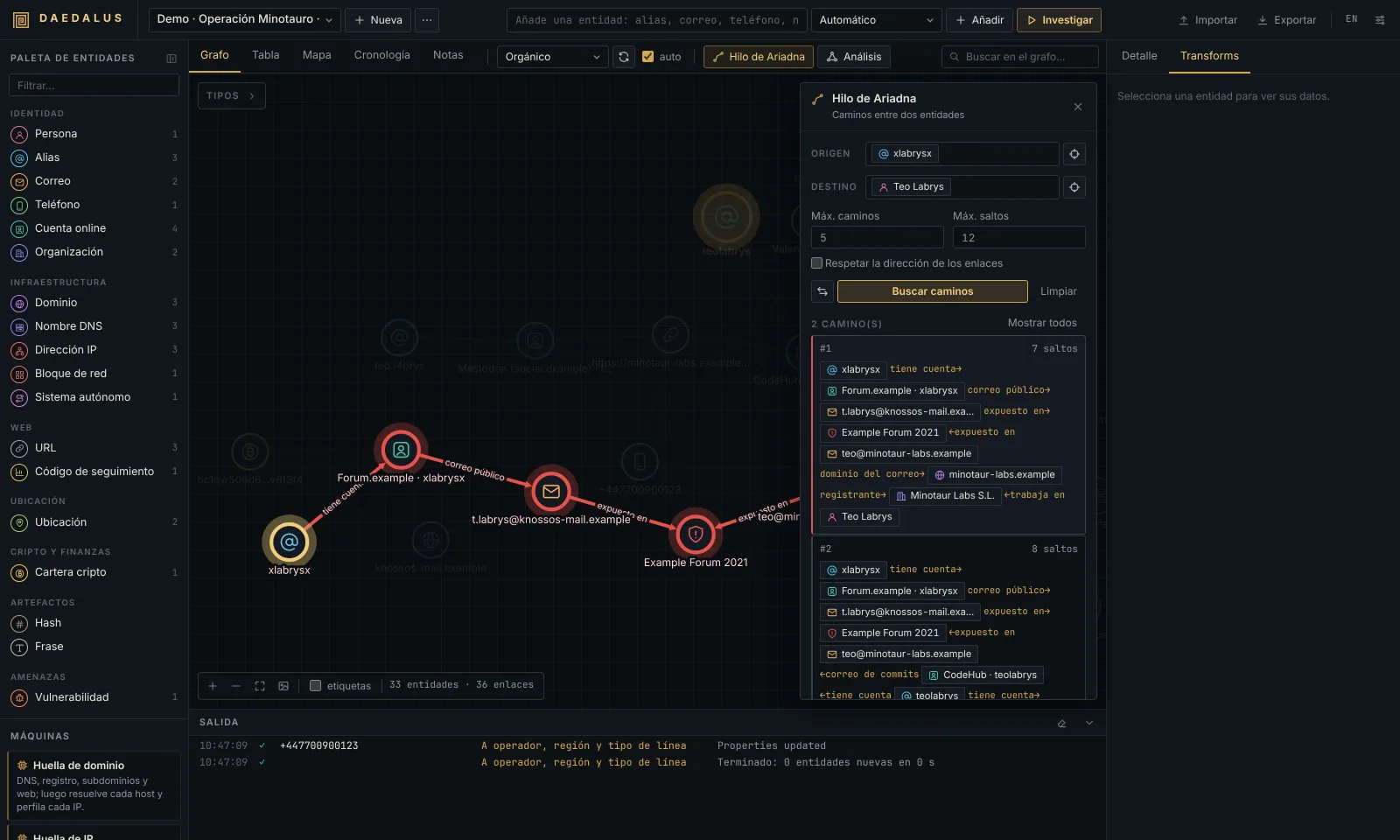
- Right-click the first entity → Ariadne: set as origin, then the second → Ariadne: set as target (or open Ariadne's thread in the toolbar, select a node and press ⊙ next to Origin / Target).
- The search runs as soon as both ends are set. Adjust Max paths (1-25), Max hops (1-30) and Follow link direction, then press Find paths again.
- Results are ordered from shortest to longest. Each card shows the chain of entities and the label of every hop;
an arrow pointing left (
←exposed in) means that hop goes against the link's direction. Click a card to highlight that path on the canvas, or Show all to see every path at once. ⇄ swaps origin and target.
Connect selected: select three or more entities and press Connect selected (or right-click → Connect selected) to highlight the smallest set of entities and links that joins all of them. Unreachable pairs are reported.
Tip: hubs that everybody shares (a big breach, a hosting provider) create short but meaningless paths. Hide their type in the Types box, delete them, or raise Max paths to look beyond them. Free webmail domains (gmail.com, outlook.com…) are never added as entities precisely to avoid false bridges.
09Structural analysis
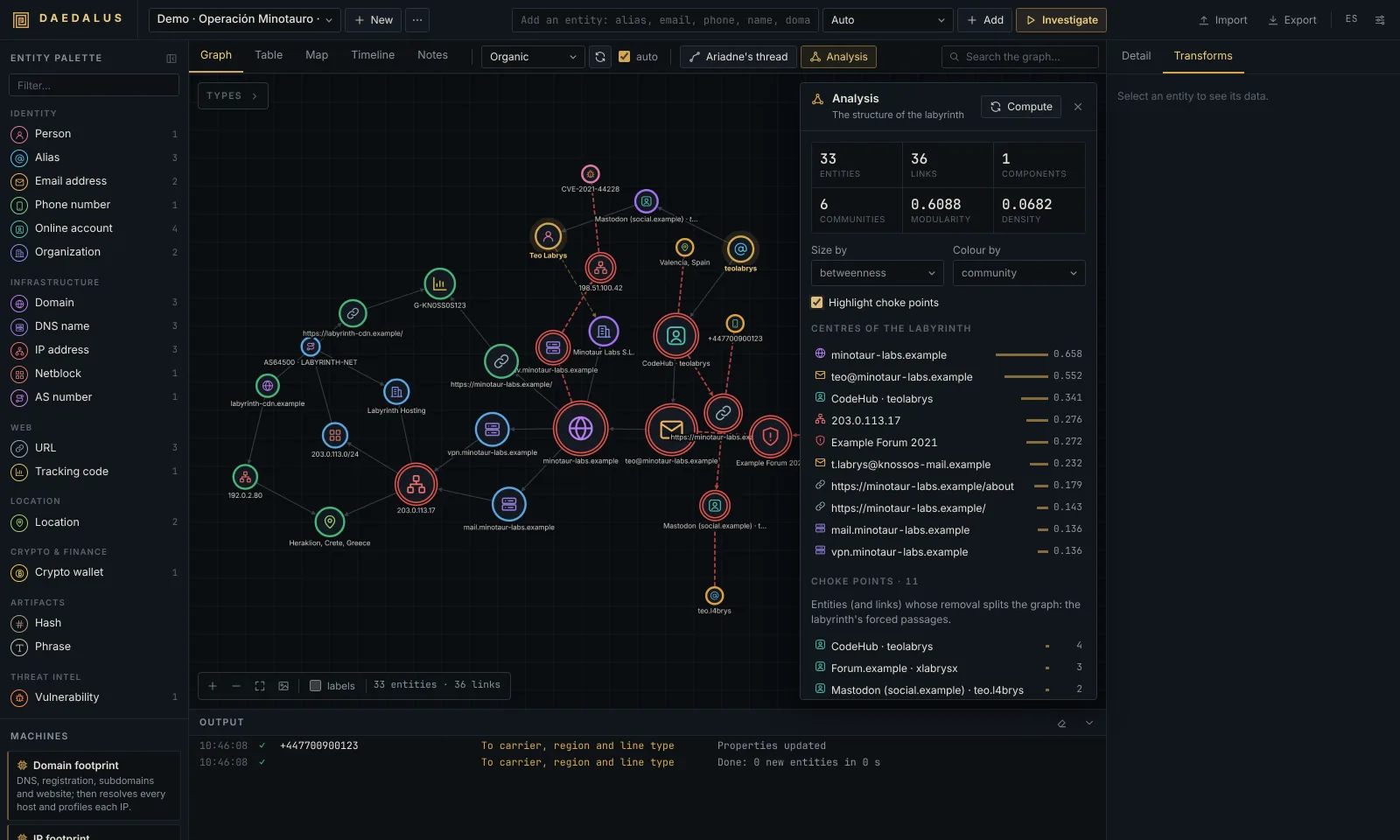
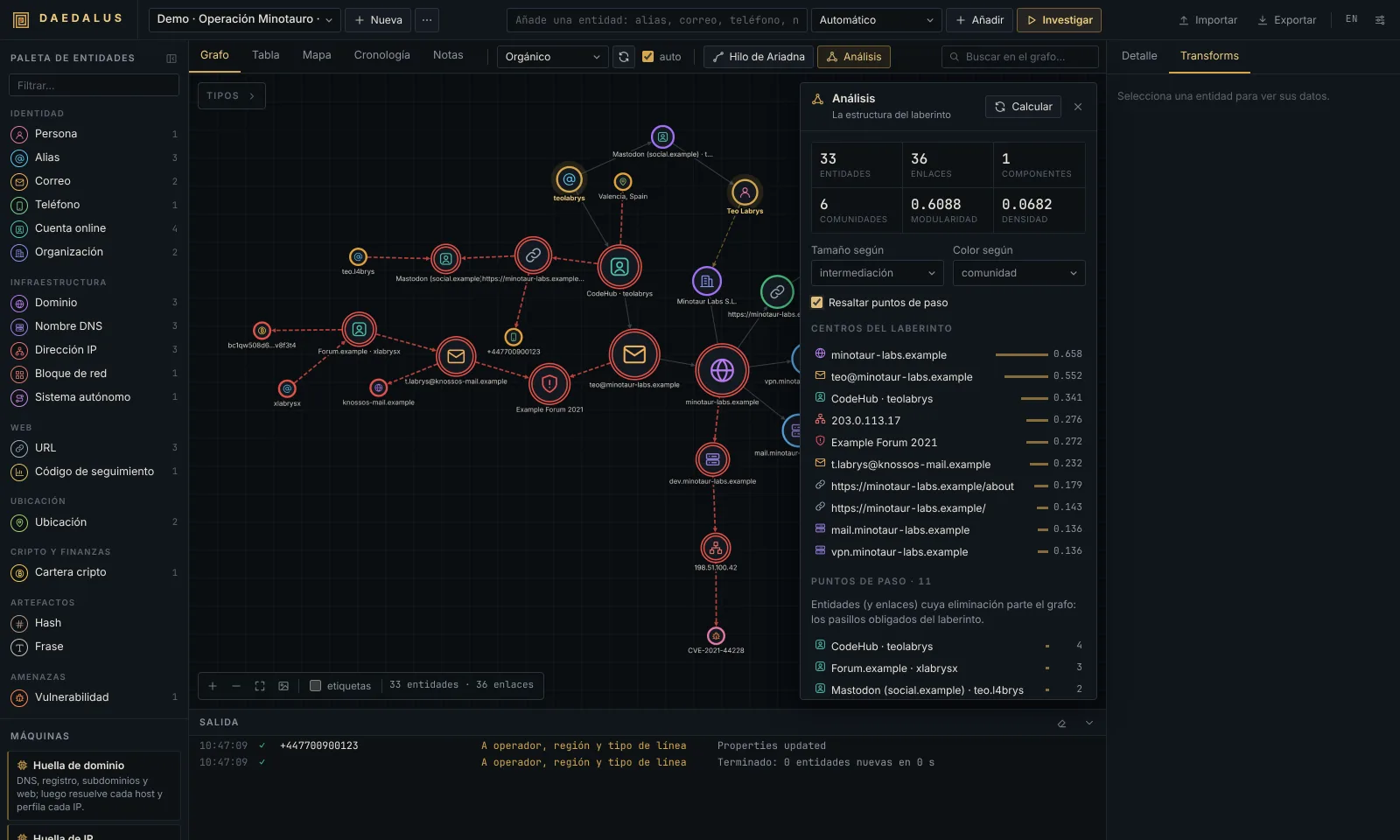
Open Analysis in the toolbar and press Compute. It works on the whole investigation:
| Measure | What it tells you |
|---|---|
| Components | Separate islands of the graph. More than one means some clues are not connected yet. |
| Communities (and modularity) | Groups of entities more connected to each other than to the rest (Louvain algorithm). Modularity above ~0.3 means the groups are clear. Often one community = one identity or one infrastructure. |
| Density | How many of the possible links exist (0-1). |
| Degree | Number of links of an entity. |
| Betweenness | How often an entity lies on the shortest paths between others: the bridges of the labyrinth. |
| PageRank | Importance by being linked from important entities. |
| Choke points | Entities (and links) whose removal splits the graph in two: the forced passages between parts of the case. |
| Same identity? | Pairs of entities of the same type that share two or more neighbours without being linked: candidates for being the same person or asset. Merge joins them. |
Use Size by (degree, betweenness, PageRank) and Colour by (type, community, component) to paint the graph, and Highlight choke points to draw them with a double red ring (bridges as dashed red links). Centres of the labyrinth lists the entities with the highest betweenness. Click any row to select it. When the graph changes, a notice reminds you to compute again.
10Table, map, timeline and notes
- Table: every entity with type, links, sources and date added. Filter by text (it searches values, properties and notes) or by type, sort by any column, tick rows and Delete checked. Clicking a row selects the entity.
- Map: entities with coordinates (IP geolocation, geocoded locations, photo GPS). Click a marker to see its connections and jump back to the graph. Map tiles are loaded from OpenStreetMap/CARTO.
- Timeline: every dated fact found by transforms (domain registered, account created, breach, first archive, certificate, last wallet activity, photo taken…), grouped by year. Click an event to go to its entity.
- Notes: free text for the whole investigation, saved automatically.
11Cleaning up: merge and delete
- Merge: select two or more entities of the same type and choose Merge into one (right-click or inspector). The seed (or the first selected) is kept; properties and notes are combined and every link is moved to it.
- Delete: Del/Backspace, the inspector's ✕, the right-click menu or the table. Deleting an entity removes its links too. Deleting more than one asks for confirmation.
- Hide instead of delete: use the Types box when you just want less noise.
12Investigations, import and export
- ⋯ next to the selector renames or deletes the current investigation (deleting cannot be undone).
- Export ▾:
- JSON (DAEDALUS): the full investigation, including notes and node positions. Re-import it with Import (it creates a new investigation named … (imported)). This is also the way to back up or share a case.
- GraphML: open the graph in Gephi, yEd or Cytoscape desktop.
- Entities CSV / Links CSV: for spreadsheets or other tools.
- PNG image: the whole graph at high resolution (also from the PNG button).
13Settings
<img src="../img/en-settings.png" alt="Settings" width="600">
General
| Option | Default | Meaning |
|---|---|---|
| Max results per transform | 50 | Default result limit (the Transforms panel can change it until you reload). |
| Max entities per machine | 60 | How many entities a machine may expand before stopping. |
| Per-site timeout in the alias sweep | 12 s | Wait per site when checking an alias. |
| Default country for phones | empty | ISO code (ES, MX, US…) used to read phone numbers written without +prefix. |
| Extend the alias sweep with the Sherlock database | off | Adds 400+ sites from the Sherlock project (slower, noisier). |
| Include adult sites in the sweep | off | Only applies with the Sherlock database. |
| Block private addresses in web transforms | on | Web transforms refuse to fetch internal addresses (127.0.0.1, 10.x, 192.168.x…). Keep it on when DAEDALUS is reachable by others. |
| Load remote images automatically | off | Avatars and screenshots are only downloaded when you click Load image (they would reveal your IP to the site). Stored in this browser. |
API keys
Optional keys for Shodan, VirusTotal, Hunter.io, Have I Been Pwned, AbuseIPDB, urlscan.io, GitHub, Serper and Brave Search, each with a link to get one. Leave a field empty to keep the current key. See which transforms use each key in the reference.
Language
English (default) or Español. Saved with the installation, so it is the same in every browser.
14Keyboard and mouse reference
| Action | How |
|---|---|
| Transforms, machines, Ariadne, bookmark, delete… | right-click a node (or selection) |
| Rename / delete a link | right-click the link |
| Add entity at a point, select all, re-layout | right-click the empty canvas |
| Open the Transforms panel | double-click a node |
| Add to selection · box selection | Ctrl/⌘ + click · Shift + drag |
| Select all | Ctrl/⌘ + A |
| Delete selection | Del / Backspace |
| Clear selection, highlights, menus, link mode | Esc |
| Fit the graph | F |
| Next search match | Enter in the search box |
| Add entity · add and investigate | Enter in the quick-add bar · Investigate |
15Example workflows
From an alias to a person. Add the alias and press Investigate (or run the Identity footprint machine). Review the accounts found; open the ones under To check by hand. Detailed profiles and GitHub often add a real name, location, website and commit emails; run the email transforms on those (Gravatar, breaches, domain). Use Analysis → Same identity? to spot aliases that share an email or location, and Merge what you confirm. Bookmark confirmed accounts green and discarded ones red.
Map an organisation's infrastructure. Add the domain and run Domain footprint. Then Analysis → Colour by community separates mail, web and VPN infrastructure; Highlight choke points shows the hosts everything depends on. Run IP footprint on interesting IPs and To scanned pages [urlscan.io] for historical pages. Export to GraphML for a report.
Prove that two identities are connected. Put both in the same investigation, expand each one, and set them as Ariadne's origin and target. Read the hops of the shortest path: each label is the evidence (e.g. same tracking code, exposed in the same breach, commit email). Open each entity's links and dates to document it.
16Troubleshooting and FAQ
A transform says skipped. Read the message: a missing API key, a rate limit (GitHub without token allows 60 requests/hour; add a token), or an input it cannot handle.
Web search returns nothing or asks for a captcha. DuckDuckGo blocks automated searches from some IPs. Add a Serper or Brave key in Settings for reliable search.
Few accounts found / many To check by hand. Social networks block data-centre IPs much more than home connections. On a hosted instance this is expected; open the listed links yourself.
The map is grey. Map tiles come from the internet (OpenStreetMap/CARTO); check the browser's connection.
Why isn't gmail.com added when I expand an email? Free webmail providers would link every unrelated person who
uses them. DAEDALUS records the provider as a property instead.
Where is my data? In the DAEDALUS data folder (./data when running from source, the volume on Docker/Railway):
daedalus.db holds every investigation and settings.json the settings and API keys. Back it up or use
Export → JSON per investigation.
Can several people use one instance? Yes, with one shared password, but there are no user accounts or permissions: everyone sees and edits every investigation.
17Responsible use and OPSEC
- DAEDALUS only queries public sources and services you configure, but those services see the requests: they come from your IP (or your server's). Use a VPN or a hosted instance if that matters for your investigation.
- Remote images are not loaded unless you ask, for the same reason.
- Use it for legitimate work: security research, threat intelligence, journalism, due diligence or auditing your own footprint. Do not use it to stalk, harass or profile people without a lawful basis, and respect data-protection law (GDPR and others) and each source's terms of service.