Contents

01User guide

DAEDALUS user guide

DAEDALUS turns scattered clues (an alias, an email, a domain, a wallet…) into a graph you can explore, expand and reason about. This guide covers everything you can do from the web interface. For installation, configuration, the REST API and extending DAEDALUS, see the technical documentation.

Author · Alejandro BreaView source on GitHub

01Key concepts

Concept What it is
Investigation A case: one graph with its entities, links, notes and layout. You can keep as many as you like and switch between them from the top bar.
Entity A node of the graph: a person, alias, email, phone, domain, IP, URL, wallet, hash, location… There are 20 types (see the reference). Each entity has a value, properties, notes and an optional bookmark.
Seed An entity you added yourself. Seeds are drawn larger with a gold ring.
Link A labelled, directed relationship between two entities (teolabrys —has account→ GitHub · teolabrys). Transforms create links; you can also draw them by hand (shown dashed).
Property A fact attached to an entity (registrar, open ports, followers, balance…). Shown in the inspector.
Transform An action that takes one entity and discovers related entities or properties, usually by querying a public source. There are 46 built in.
Machine A scripted chain of transforms that walks outwards from your seeds over several stages.
Ariadne's thread The path finder: it shows every route that connects two entities through the graph.

02First steps

  1. Start DAEDALUS (./start.sh, start.bat, daedalus or Docker, see the technical docs) and open http://127.0.0.1:8787. If the instance is protected, your browser asks for credentials: any user name and the configured password.
  2. Choose your language in Settings → Language. English is the default; Spanish is also available. The EN/ES button in the top bar switches between them too. The choice is saved with the installation.
  3. Create an investigation with + New (a first one is created automatically).
  4. Want a guided tour? Click Import and pick examples/operation-minotaur.json from the repository: a small fictional case (every person, .example domain and documentation-range IP in it is made up) that you can use to try every feature without querying anything.

03The workspace
Workspace
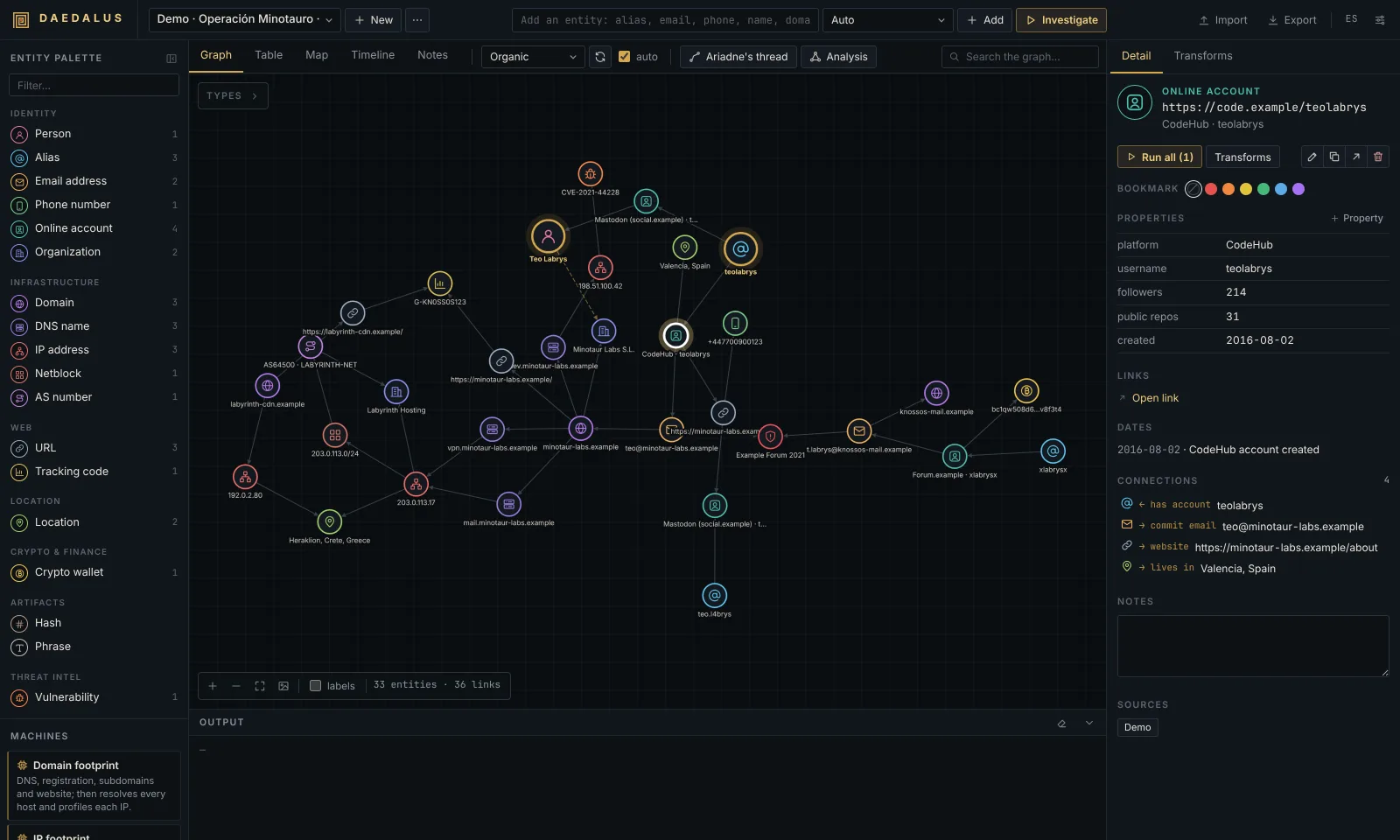
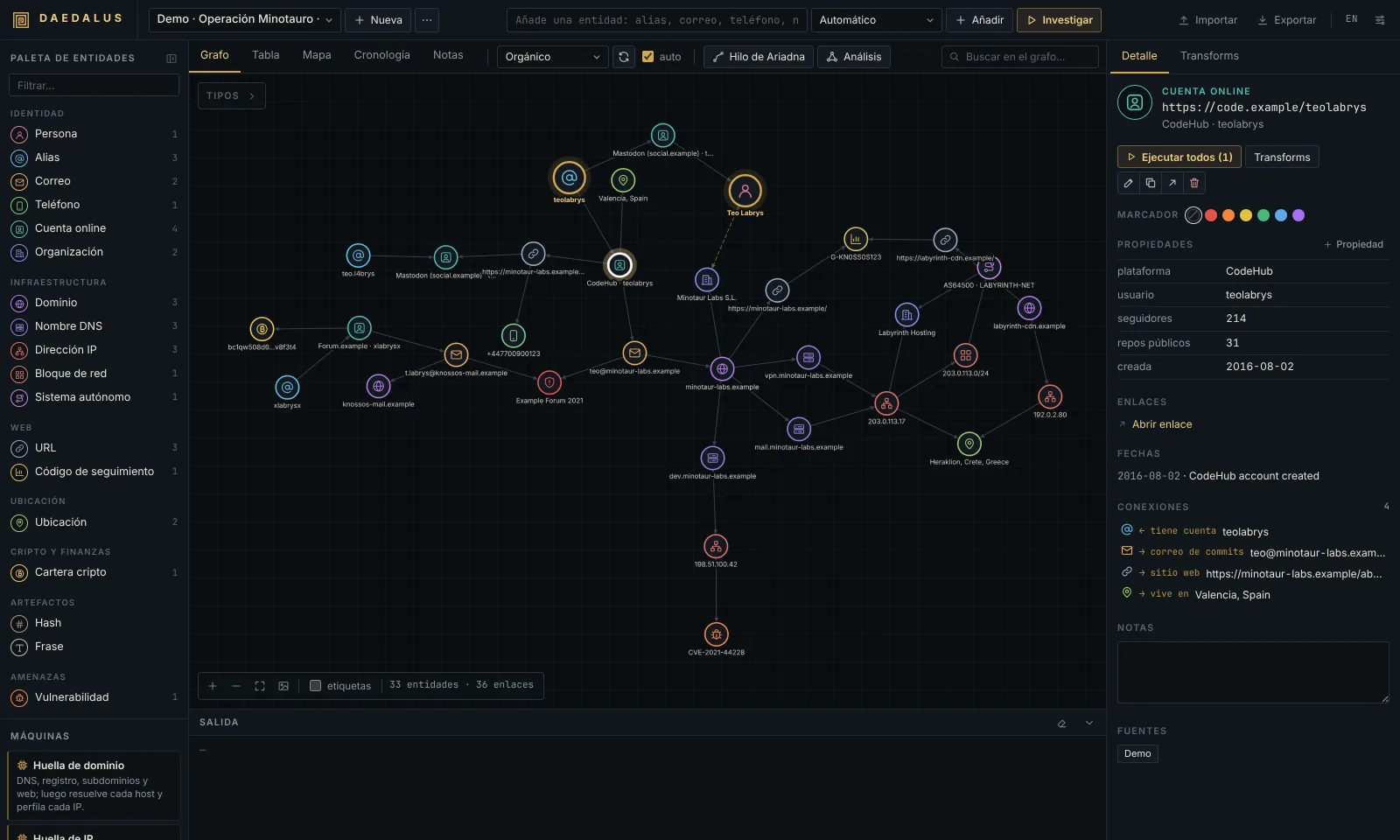
Area Where What for
Top bar top Investigation selector, + New, ⋯ (rename / delete), the quick-add bar, Import, Export, language switch and Settings.
Entity palette left Every entity type you can create (with how many the case has), the list of machines and the image drop zone. The button next to its title folds it into a rail of type icons (still clickable and draggable); on windows narrower than 1100 px it starts folded.
Toolbar above the canvas View tabs (Graph, Table, Map, Timeline, Notes), layout selector, Re-layout, auto layout, Ariadne's thread, Analysis and the graph search box.
Canvas centre The graph. The Types box (top left) lists the entity types present and lets you hide them; the bottom-left bar has zoom, Fit, PNG, link labels and counters.
Inspector right Detail of the selected entity (properties, links, dates, connections, notes, history) and the Transforms panel.
Output bottom Live log of every transform run with its status, plus a progress bar and Cancel while jobs are running.

04Adding and editing entities

Quick add

Type anything in the top bar and press Enter (or Add). DAEDALUS recognises the type automatically and shows it in the selector (Auto · IP address); pick another type in the selector if the guess is wrong. Investigate adds the entity and runs every default transform on it in one go.

Recognised automatically: URLs, emails, IPv4/IPv6, CIDR netblocks, AS… numbers, CVE-… identifiers, analytics tracking codes (UA-, G-, GTM-, ca-pub-), lat, lon coordinates, Bitcoin/Ethereum/Litecoin/Dogecoin/Tron/Monero addresses, MD5/SHA hashes, phone numbers, domains and DNS names, names written as Name Surname, aliases and, as a last resort, free-text phrases. The full list with examples is in the reference.

Other ways to add

  • Palette: click a type to open the New entity dialog, or drag it onto the canvas to create it exactly where you drop it.
  • Canvas right-click → Add entity here: choose the type from the menu.
  • Photos: drop an image on the canvas or on the palette's Image (EXIF/GPS) zone. DAEDALUS extracts camera, dates, author and GPS position, and creates the image plus its SHA-256 hash, the location where it was taken and the people named in its metadata (author, owner, copyright).

Editing

Select an entity to see it in the inspector:

  • ✎ Edit value renames it. If another entity of the same type already has that value, both are merged.
  • + property adds a custom property; hover a property and click ✕ to remove it.
  • Notes are saved automatically as you type.
  • Bookmark: six colours that draw a ring around the node, useful to tag "confirmed", "to review", "suspect"…
  • ↗ Link to… (also in the right-click menu) starts link mode: click the target entity and give the link a label. Right-click a link to rename or delete it.
  • ⧉ copies the value; ✕ deletes the entity.

05Running transforms

Where to run them

  • Right-click an entity (or a selection): the menu groups the transforms that apply by category (DNS, Infrastructure, Web, Identity, Social, Search, Location, Blockchain, Threat intel) plus Run all and Machines.
  • Transforms panel (inspector, or double-click a node): the same list with a description and the result of the last run of each transform on that entity. Use the filter box to find one quickly.
  • Run all runs every transform marked default (a few noisy ones, such as name permutations, archived files or wallet counterparties, only run when you pick them explicitly).

Running on a selection applies each transform to every selected entity it accepts.

What happens

Results stream in live. New entities appear around the entity that produced them, linked with a label that explains the relationship. Entities that already existed are reused and their properties merged, so the graph never duplicates the same email or domain. When the job ends, the graph re-layouts itself if auto is ticked.

Each run is logged in Output and in the entity's Transforms run history:

Status Meaning
✓ ok Found something (the number shows how many results).
∅ empty The source answered but had nothing.
⏭ skipped Could not run: missing API key, rate limit, unsupported input… The message says why.
✕ error Network error, timeout or unexpected answer.

Result limit

The Limit selector of the Transforms panel (12 / 50 / 255 / 1000) caps how many entities a single run may add, like Maltego's slider. When a run hits it, the message says limit reached. The value you pick there lasts until you reload the page; the permanent default is in Settings → General.

Keys and locked transforms

Transforms that need an API key show 🔑 with the key's name and are dimmed until you add it; clicking one opens Settings → API keys. Most transforms (41 of 46) need no key at all.

Sites that blocked the check

The account sweep double-checks every hit against a random alias to throw away sites that say "yes" to everything. Sites that blocked the automatic check (captcha, WAF, rate limit) are listed under To check by hand in the alias's detail, with a link to open each profile yourself.

Cancelling

Cancel in the Output bar stops every running job of the current investigation. What was already found stays.

06Machines

Machines chain transforms over several stages: stage 1 runs on the seeds, and each following stage only on what the previous one produced. Launch them from the right-click menu, from the Transforms panel or from the palette (with entities selected).

Machine Use it on What it does
Domain footprint domain DNS, registration, subdomains, website, security.txt and archive; then resolves every host and profiles each IP.
IP footprint IP, netblock Owner, network, location, exposed services and names hosted on the IP.
Identity footprint alias, email, phone, person Accounts, profiles, breaches and new aliases, two levels deep.
Website footprint URL, domain, DNS name Contacts, profiles and trackers on the site, then one step into the linked domains.
Labyrinth anything Runs every default transform and keeps walking outwards for 1-3 levels (choose in the Transforms panel).

Every machine stops expanding when it reaches Settings → General → Max entities per machine (60 by default), so an auto-expansion cannot run away. The exact stages are in the reference.

07Navigating the graph

  • Select: click a node; Ctrl/⌘ + click adds to the selection; Shift + drag draws a selection box; Ctrl+A selects everything visible.
  • Hover a node to highlight its neighbourhood and show the labels of its links.
  • Layouts (toolbar): Organic (force-directed, the default), Hierarchical (top-down tree), Radial (around the seeds), Circular, Concentric (most connected in the centre) and Blocks by type. Re-layout recomputes it from scratch. Untick auto if you prefer to keep your manual arrangement after each transform. Node positions are saved with the investigation.
  • Search the graph (toolbar): highlights matching nodes; Enter jumps from one match to the next.
  • Types box: click a type to hide or show it (handy to remove noise such as URLs or breaches).
  • Right-click → Select neighbours expands the selection one hop; Isolate neighbourhood dims everything except the selection and its direct neighbours; Similar entities highlights entities that share many neighbours with the selected one.
  • labels (bottom bar) shows every link label permanently. Fit (or F) frames the whole graph; Esc clears selection and highlights.

08Ariadne's thread: finding paths
Ariadne's thread

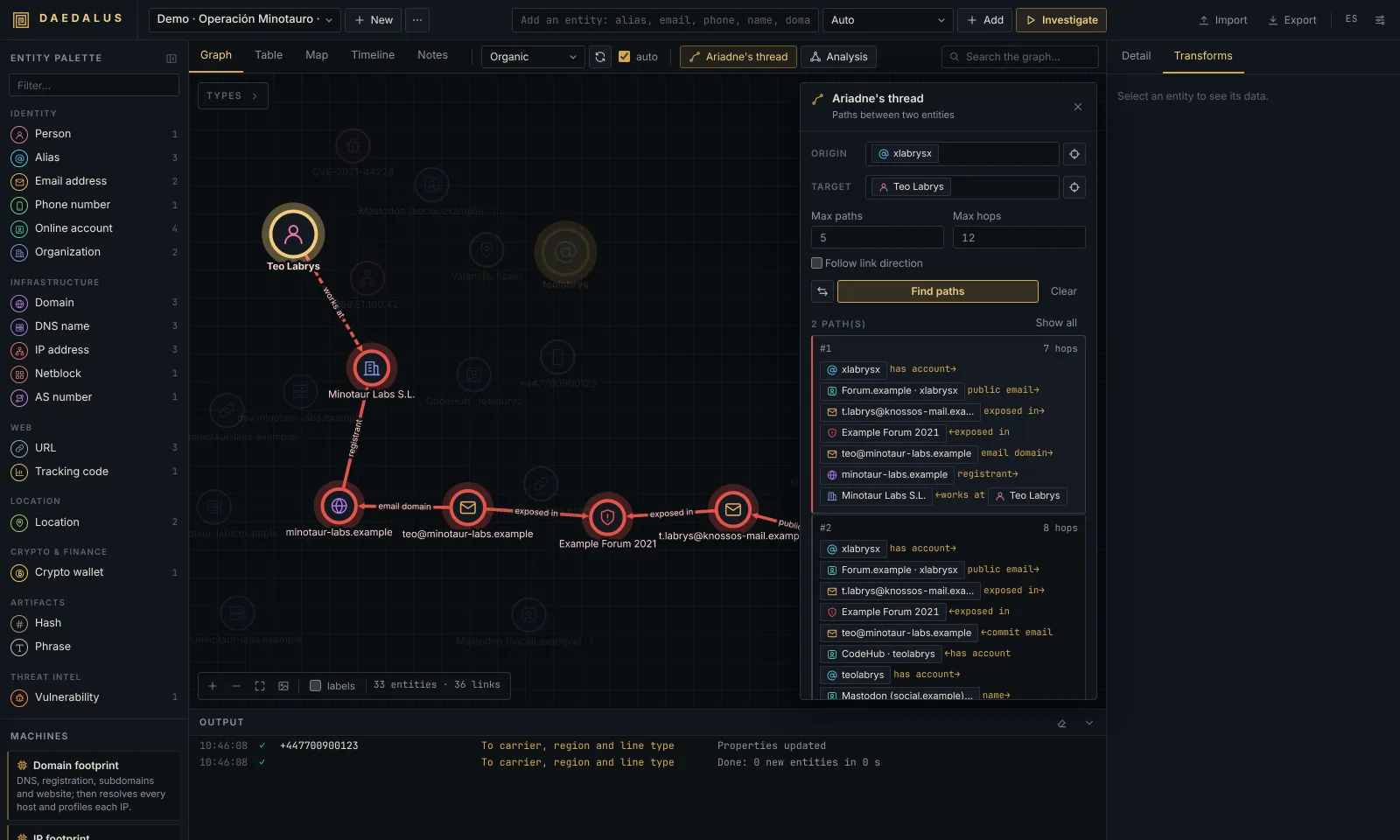
Ariadne answers "how is A connected to B?".

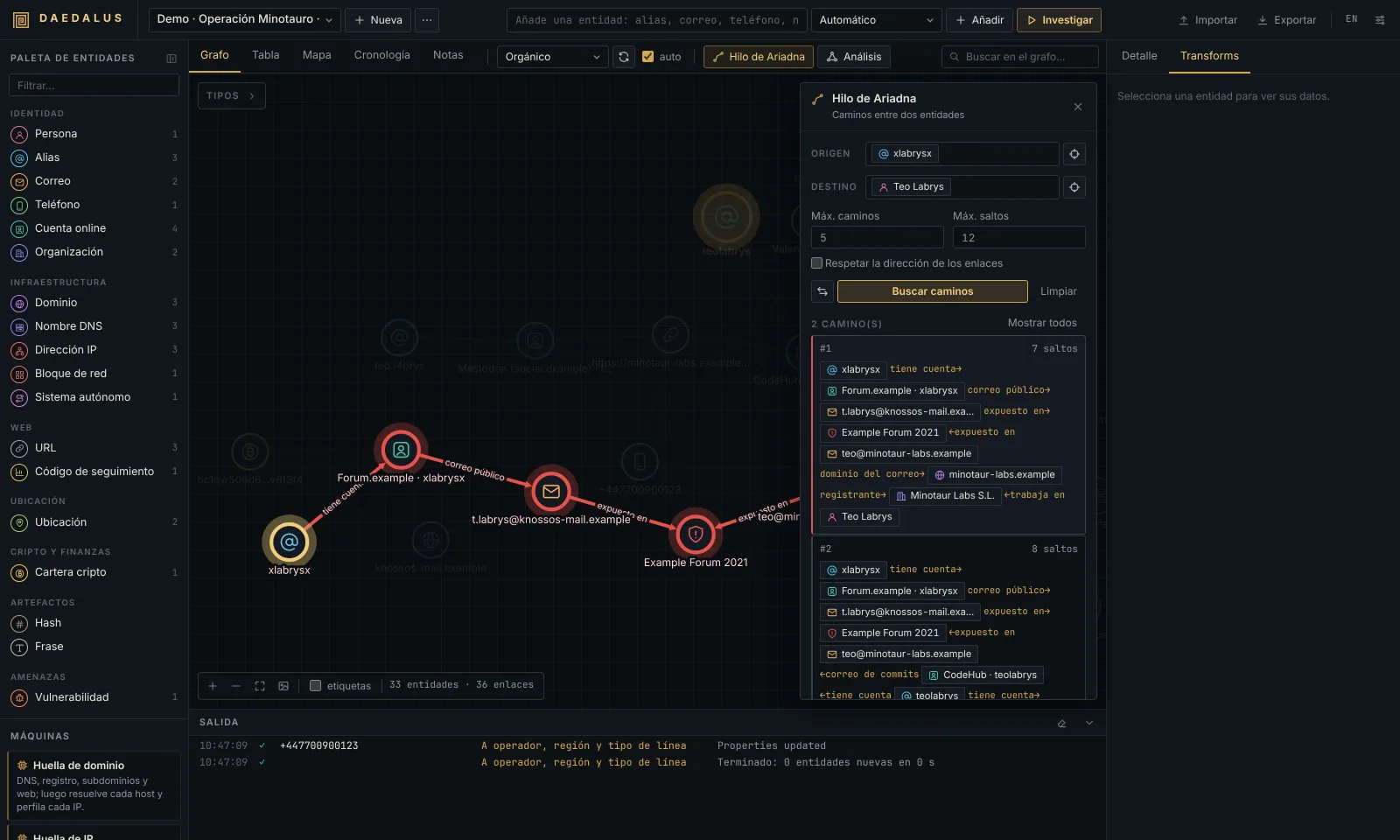
  1. Right-click the first entity → Ariadne: set as origin, then the second → Ariadne: set as target (or open Ariadne's thread in the toolbar, select a node and press ⊙ next to Origin / Target).
  2. The search runs as soon as both ends are set. Adjust Max paths (1-25), Max hops (1-30) and Follow link direction, then press Find paths again.
  3. Results are ordered from shortest to longest. Each card shows the chain of entities and the label of every hop; an arrow pointing left (←exposed in) means that hop goes against the link's direction. Click a card to highlight that path on the canvas, or Show all to see every path at once. ⇄ swaps origin and target.

Connect selected: select three or more entities and press Connect selected (or right-click → Connect selected) to highlight the smallest set of entities and links that joins all of them. Unreachable pairs are reported.

Tip: hubs that everybody shares (a big breach, a hosting provider) create short but meaningless paths. Hide their type in the Types box, delete them, or raise Max paths to look beyond them. Free webmail domains (gmail.com, outlook.com…) are never added as entities precisely to avoid false bridges.

09Structural analysis
Analysis

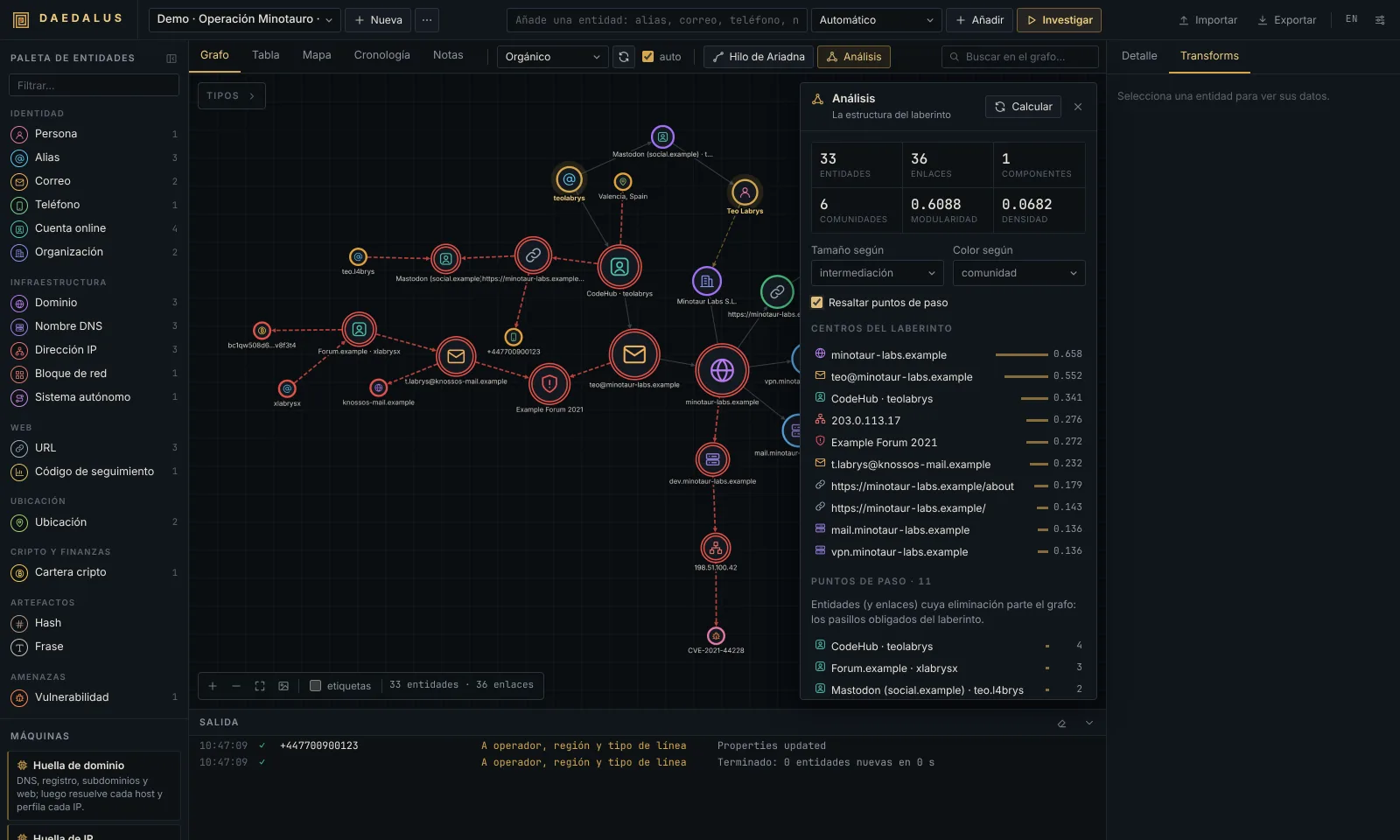
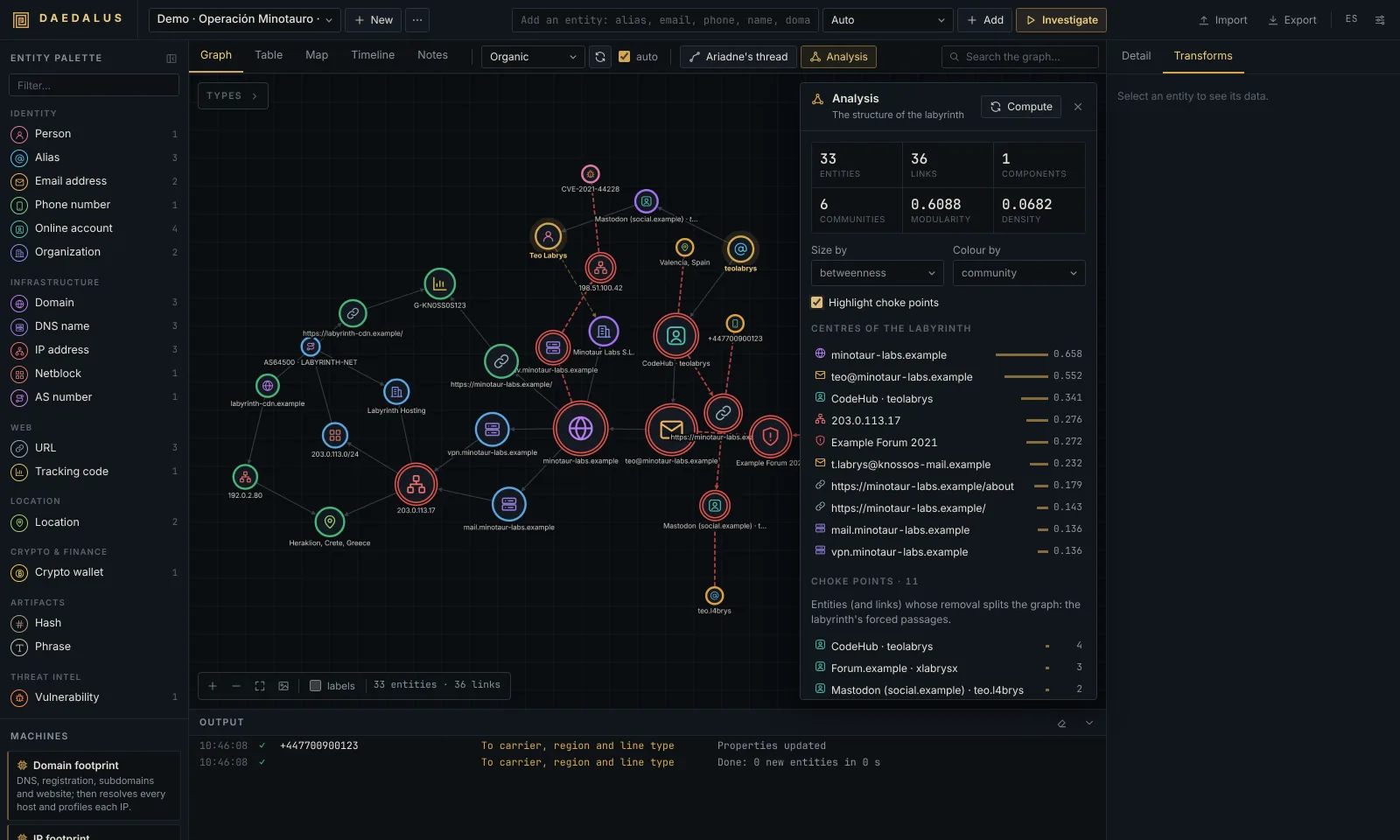
Open Analysis in the toolbar and press Compute. It works on the whole investigation:

Measure What it tells you
Components Separate islands of the graph. More than one means some clues are not connected yet.
Communities (and modularity) Groups of entities more connected to each other than to the rest (Louvain algorithm). Modularity above ~0.3 means the groups are clear. Often one community = one identity or one infrastructure.
Density How many of the possible links exist (0-1).
Degree Number of links of an entity.
Betweenness How often an entity lies on the shortest paths between others: the bridges of the labyrinth.
PageRank Importance by being linked from important entities.
Choke points Entities (and links) whose removal splits the graph in two: the forced passages between parts of the case.
Same identity? Pairs of entities of the same type that share two or more neighbours without being linked: candidates for being the same person or asset. Merge joins them.

Use Size by (degree, betweenness, PageRank) and Colour by (type, community, component) to paint the graph, and Highlight choke points to draw them with a double red ring (bridges as dashed red links). Centres of the labyrinth lists the entities with the highest betweenness. Click any row to select it. When the graph changes, a notice reminds you to compute again.

10Table, map, timeline and notes

  • Table: every entity with type, links, sources and date added. Filter by text (it searches values, properties and notes) or by type, sort by any column, tick rows and Delete checked. Clicking a row selects the entity.
  • Map: entities with coordinates (IP geolocation, geocoded locations, photo GPS). Click a marker to see its connections and jump back to the graph. Map tiles are loaded from OpenStreetMap/CARTO.
  • Timeline: every dated fact found by transforms (domain registered, account created, breach, first archive, certificate, last wallet activity, photo taken…), grouped by year. Click an event to go to its entity.
  • Notes: free text for the whole investigation, saved automatically.

11Cleaning up: merge and delete

  • Merge: select two or more entities of the same type and choose Merge into one (right-click or inspector). The seed (or the first selected) is kept; properties and notes are combined and every link is moved to it.
  • Delete: Del/Backspace, the inspector's ✕, the right-click menu or the table. Deleting an entity removes its links too. Deleting more than one asks for confirmation.
  • Hide instead of delete: use the Types box when you just want less noise.

12Investigations, import and export

  • ⋯ next to the selector renames or deletes the current investigation (deleting cannot be undone).
  • Export ▾:
    • JSON (DAEDALUS): the full investigation, including notes and node positions. Re-import it with Import (it creates a new investigation named … (imported)). This is also the way to back up or share a case.
    • GraphML: open the graph in Gephi, yEd or Cytoscape desktop.
    • Entities CSV / Links CSV: for spreadsheets or other tools.
    • PNG image: the whole graph at high resolution (also from the PNG button).

13Settings

<img src="../img/en-settings.png" alt="Settings" width="600">

General

Option Default Meaning
Max results per transform 50 Default result limit (the Transforms panel can change it until you reload).
Max entities per machine 60 How many entities a machine may expand before stopping.
Per-site timeout in the alias sweep 12 s Wait per site when checking an alias.
Default country for phones empty ISO code (ES, MX, US…) used to read phone numbers written without +prefix.
Extend the alias sweep with the Sherlock database off Adds 400+ sites from the Sherlock project (slower, noisier).
Include adult sites in the sweep off Only applies with the Sherlock database.
Block private addresses in web transforms on Web transforms refuse to fetch internal addresses (127.0.0.1, 10.x, 192.168.x…). Keep it on when DAEDALUS is reachable by others.
Load remote images automatically off Avatars and screenshots are only downloaded when you click Load image (they would reveal your IP to the site). Stored in this browser.

API keys

Optional keys for Shodan, VirusTotal, Hunter.io, Have I Been Pwned, AbuseIPDB, urlscan.io, GitHub, Serper and Brave Search, each with a link to get one. Leave a field empty to keep the current key. See which transforms use each key in the reference.

Language

English (default) or Español. Saved with the installation, so it is the same in every browser.

14Keyboard and mouse reference

Action How
Transforms, machines, Ariadne, bookmark, delete… right-click a node (or selection)
Rename / delete a link right-click the link
Add entity at a point, select all, re-layout right-click the empty canvas
Open the Transforms panel double-click a node
Add to selection · box selection Ctrl/⌘ + click · Shift + drag
Select all Ctrl/⌘ + A
Delete selection Del / Backspace
Clear selection, highlights, menus, link mode Esc
Fit the graph F
Next search match Enter in the search box
Add entity · add and investigate Enter in the quick-add bar · Investigate

15Example workflows

From an alias to a person. Add the alias and press Investigate (or run the Identity footprint machine). Review the accounts found; open the ones under To check by hand. Detailed profiles and GitHub often add a real name, location, website and commit emails; run the email transforms on those (Gravatar, breaches, domain). Use Analysis → Same identity? to spot aliases that share an email or location, and Merge what you confirm. Bookmark confirmed accounts green and discarded ones red.

Map an organisation's infrastructure. Add the domain and run Domain footprint. Then Analysis → Colour by community separates mail, web and VPN infrastructure; Highlight choke points shows the hosts everything depends on. Run IP footprint on interesting IPs and To scanned pages [urlscan.io] for historical pages. Export to GraphML for a report.

Prove that two identities are connected. Put both in the same investigation, expand each one, and set them as Ariadne's origin and target. Read the hops of the shortest path: each label is the evidence (e.g. same tracking code, exposed in the same breach, commit email). Open each entity's links and dates to document it.

16Troubleshooting and FAQ

A transform says skipped. Read the message: a missing API key, a rate limit (GitHub without token allows 60 requests/hour; add a token), or an input it cannot handle.

Web search returns nothing or asks for a captcha. DuckDuckGo blocks automated searches from some IPs. Add a Serper or Brave key in Settings for reliable search.

Few accounts found / many To check by hand. Social networks block data-centre IPs much more than home connections. On a hosted instance this is expected; open the listed links yourself.

The map is grey. Map tiles come from the internet (OpenStreetMap/CARTO); check the browser's connection.

Why isn't gmail.com added when I expand an email? Free webmail providers would link every unrelated person who uses them. DAEDALUS records the provider as a property instead.

Where is my data? In the DAEDALUS data folder (./data when running from source, the volume on Docker/Railway): daedalus.db holds every investigation and settings.json the settings and API keys. Back it up or use Export → JSON per investigation.

Can several people use one instance? Yes, with one shared password, but there are no user accounts or permissions: everyone sees and edits every investigation.

17Responsible use and OPSEC

  • DAEDALUS only queries public sources and services you configure, but those services see the requests: they come from your IP (or your server's). Use a VPN or a hosted instance if that matters for your investigation.
  • Remote images are not loaded unless you ask, for the same reason.
  • Use it for legitimate work: security research, threat intelligence, journalism, due diligence or auditing your own footprint. Do not use it to stalk, harass or profile people without a lawful basis, and respect data-protection law (GDPR and others) and each source's terms of service.
01Guía de usuario

Guía de usuario de DAEDALUS

DAEDALUS convierte pistas sueltas (un alias, un correo, un dominio, una cartera…) en un grafo que puedes explorar, ampliar y analizar. Esta guía cubre todo lo que se puede hacer desde la interfaz web. Para la instalación, la configuración, la API REST y cómo ampliar DAEDALUS, consulta la documentación técnica.

La interfaz está en inglés por defecto. Cámbiala a español en Settings → Language (o con el botón ES de la barra superior). Esta guía usa los nombres de la interfaz en español.

Autor · Alejandro BreaVer el original en GitHub

01Conceptos clave

Concepto Qué es
Investigación Un caso: un grafo con sus entidades, enlaces, notas y disposición. Puedes tener tantas como quieras y cambiar entre ellas desde la barra superior.
Entidad Un nodo del grafo: persona, alias, correo, teléfono, dominio, IP, URL, cartera, hash, ubicación… Hay 20 tipos (ver la referencia). Cada entidad tiene un valor, propiedades, notas y un marcador opcional.
Semilla Una entidad que añadiste tú. Se dibuja más grande y con un anillo dorado.
Enlace Una relación dirigida y con etiqueta entre dos entidades (teolabrys —tiene cuenta→ GitHub · teolabrys). Los crean los transforms; también puedes dibujarlos a mano (se ven discontinuos).
Propiedad Un dato asociado a una entidad (registrador, puertos abiertos, seguidores, saldo…). Se ve en el inspector.
Transform Una acción que toma una entidad y descubre entidades o propiedades relacionadas, normalmente consultando una fuente pública. Hay 46 incluidos.
Máquina Una cadena de transforms que avanza desde tus semillas a lo largo de varias etapas.
Hilo de Ariadna El buscador de caminos: muestra todas las rutas que conectan dos entidades a través del grafo.

02Primeros pasos

  1. Arranca DAEDALUS (./start.sh, start.bat, daedalus o Docker; ver la documentación técnica) y abre http://127.0.0.1:8787. Si la instancia está protegida, el navegador te pedirá credenciales: cualquier usuario y la contraseña configurada.
  2. Elige el idioma en Ajustes → Idioma (Settings → Language). El inglés es el predeterminado; también está el español. El botón EN/ES de la barra superior cambia entre ambos. La elección se guarda en la instalación.
  3. Crea una investigación con + Nueva (la primera se crea sola).
  4. ¿Quieres un recorrido guiado? Pulsa Importar y elige examples/operation-minotaur.json del repositorio: un caso pequeño y ficticio (todas las personas, dominios .example e IPs de rangos de documentación son inventados) para probar todas las funciones sin consultar nada.

03El espacio de trabajo

Espacio de trabajo
Zona Dónde Para qué
Barra superior arriba Selector de investigación, + Nueva, ⋯ (renombrar / eliminar), la barra de alta rápida, Importar, Exportar, cambio de idioma y Ajustes.
Paleta de entidades izquierda Todos los tipos que puedes crear (con cuántos tiene el caso), la lista de máquinas y la zona para imágenes. El botón junto a su título la pliega en una columna de iconos (que se pueden seguir pulsando y arrastrando); en ventanas de menos de 1100 px empieza plegada.
Barra de herramientas sobre el lienzo Pestañas (Grafo, Tabla, Mapa, Cronología, Notas), selector de disposición, Reorganizar, auto, Hilo de Ariadna, Análisis y el buscador del grafo.
Lienzo centro El grafo. El cuadro Tipos (arriba a la izquierda) lista los tipos presentes y permite ocultarlos; la barra inferior tiene zoom, Encuadrar, PNG, etiquetas de los enlaces y contadores.
Inspector derecha Detalle de la entidad seleccionada (propiedades, enlaces, fechas, conexiones, notas, historial) y el panel Transforms.
Salida abajo Registro en directo de cada transform con su estado, y una barra de progreso y Cancelar mientras hay trabajos en marcha.

04Añadir y editar entidades

Alta rápida

Escribe cualquier cosa en la barra superior y pulsa Intro (o Añadir). DAEDALUS reconoce el tipo solo y lo muestra en el selector (Automático · Dirección IP); si se equivoca, elige otro tipo en el selector. Investigar añade la entidad y lanza sobre ella todos los transforms por defecto de una vez.

Se reconocen solos: URLs, correos, IPv4/IPv6, bloques CIDR, números AS…, identificadores CVE-…, códigos de seguimiento de analítica (UA-, G-, GTM-, ca-pub-), coordenadas lat, lon, direcciones de Bitcoin, Ethereum, Litecoin, Dogecoin, Tron y Monero, hashes MD5/SHA, teléfonos, dominios y nombres DNS, nombres escritos como Nombre Apellido, alias y, como último recurso, frases de texto libre. La lista completa con ejemplos está en la referencia.

Otras formas de añadir

  • Paleta: haz clic en un tipo para abrir el diálogo Nueva entidad, o arrástralo al lienzo para crearla justo donde la sueltes.
  • Clic derecho en el lienzo → Añadir entidad aquí: elige el tipo en el menú.
  • Fotos: suelta una imagen en el lienzo o en la zona Imagen (EXIF/GPS) de la paleta. DAEDALUS extrae cámara, fechas, autor y posición GPS, y crea la imagen junto a su hash SHA-256, la ubicación donde se tomó y las personas que aparecen en sus metadatos (autor, propietario, copyright).

Editar

Selecciona una entidad para verla en el inspector:

  • ✎ Editar valor la renombra. Si ya existe otra entidad del mismo tipo con ese valor, se fusionan.
  • + propiedad añade una propiedad propia; pasa el ratón por una propiedad y pulsa ✕ para quitarla.
  • Las Notas se guardan solas mientras escribes.
  • Marcador: seis colores que dibujan un anillo alrededor del nodo, útiles para marcar «confirmado», «revisar», «sospechoso»…
  • ↗ Enlazar con… (también en el menú contextual) activa el modo enlace: haz clic en la entidad de destino y ponle una etiqueta al enlace. Clic derecho sobre un enlace para cambiarle la etiqueta o eliminarlo.
  • ⧉ copia el valor; ✕ elimina la entidad.

05Lanzar transforms

Dónde se lanzan

  • Clic derecho sobre una entidad (o una selección): el menú agrupa por categorías los transforms que se pueden aplicar (DNS, Infraestructura, Web, Identidad, Redes y cuentas, Buscadores, Ubicación, Blockchain, Amenazas), además de Ejecutar todos y Máquinas.
  • Panel Transforms (en el inspector, o con doble clic sobre un nodo): la misma lista con descripción y el resultado de la última ejecución de cada transform sobre esa entidad. Usa el filtro para encontrarlo rápido.
  • Ejecutar todos lanza los transforms marcados por defecto (algunos ruidosos, como las permutaciones de nombre, los ficheros archivados o las carteras contraparte, sólo se ejecutan si los eliges a mano).

Si lanzas sobre una selección, cada transform se aplica a todas las entidades seleccionadas que acepte.

Qué pasa

Los resultados llegan en directo. Las entidades nuevas aparecen alrededor de la que las produjo, unidas por un enlace cuya etiqueta explica la relación. Las entidades que ya existían se reutilizan y se fusionan sus propiedades, así que el grafo nunca duplica el mismo correo o dominio. Al terminar el trabajo, el grafo se reorganiza si auto está marcado.

Cada ejecución queda en Salida y en el historial Transforms ejecutados de la entidad:

Estado Significado
✓ ok Encontró algo (el número indica cuántos resultados).
∅ vacío La fuente respondió pero no tenía nada.
⏭ omitido No se pudo ejecutar: falta una clave API, límite de peticiones, entrada no soportada… El mensaje explica el motivo.
✕ error Error de red, tiempo agotado o respuesta inesperada.

Límite de resultados

El selector Límite del panel Transforms (12 / 50 / 255 / 1000) acota cuántas entidades puede añadir una sola ejecución, como el deslizador de Maltego. Cuando se alcanza, el mensaje dice limit reached. El valor que elijas ahí dura hasta que recargues la página; el valor predeterminado permanente está en Ajustes → General.

Claves y transforms bloqueados

Los transforms que necesitan una clave API muestran 🔑 con el nombre de la clave y aparecen atenuados hasta que la añades; al pulsar uno se abre Ajustes → Claves API. La mayoría (41 de 46) no necesitan ninguna clave.

Sitios que bloquearon la comprobación

El barrido de cuentas contrasta cada acierto con un alias aleatorio para descartar los sitios que dicen «sí» a todo. Los sitios que bloquearon la comprobación automática (captcha, WAF, límite de peticiones) aparecen en Por comprobar a mano dentro del detalle del alias, con un enlace para abrir cada perfil tú mismo.

Cancelar

Cancelar en la barra de Salida detiene todos los trabajos en marcha de la investigación actual. Lo que ya se encontró se queda.

06Máquinas

Las máquinas encadenan transforms en varias etapas: la etapa 1 se ejecuta sobre las semillas y cada etapa siguiente sólo sobre lo que produjo la anterior. Se lanzan desde el menú contextual, desde el panel Transforms o desde la paleta (con entidades seleccionadas).

Máquina Sobre Qué hace
Huella de dominio dominio DNS, registro, subdominios, web, security.txt y archivo; después resuelve cada host y perfila cada IP.
Huella de IP IP, bloque de red Titular, red, ubicación, servicios expuestos y nombres alojados en la IP.
Huella de identidad alias, correo, teléfono, persona Cuentas, perfiles, filtraciones y nuevos alias, a dos niveles.
Huella de sitio web URL, dominio, nombre DNS Contactos, perfiles y rastreadores de la web, y un paso más en los dominios enlazados.
Laberinto cualquiera Ejecuta todos los transforms por defecto y sigue avanzando 1-3 niveles (se elige en el panel Transforms).

Toda máquina deja de expandirse al llegar a Ajustes → General → Máximo de entidades por máquina (60 por defecto), así que una expansión automática no se descontrola. Las etapas exactas están en la referencia.

07Moverse por el grafo

  • Seleccionar: clic en un nodo; Ctrl/⌘ + clic suma a la selección; Shift + arrastrar dibuja un área de selección; Ctrl+A selecciona todo lo visible.
  • Pasa el ratón por un nodo para resaltar su vecindario y ver las etiquetas de sus enlaces.
  • Disposiciones (barra de herramientas): Orgánico (por fuerzas, la predeterminada), Jerárquico (árbol de arriba abajo), Radial (alrededor de las semillas), Circular, Concéntrico (lo más conectado en el centro) y Bloques por tipo. Reorganizar la recalcula desde cero. Desmarca auto si prefieres conservar tu colocación manual tras cada transform. Las posiciones de los nodos se guardan con la investigación.
  • Buscar en el grafo: resalta los nodos que coinciden; Intro salta de una coincidencia a la siguiente.
  • Cuadro Tipos: haz clic en un tipo para ocultarlo o mostrarlo (útil para quitar ruido, como URLs o filtraciones).
  • Clic derecho → Seleccionar vecinos amplía la selección un salto; Aislar vecindario atenúa todo salvo la selección y sus vecinos directos; Entidades parecidas resalta las que comparten muchos vecinos con la seleccionada.
  • etiquetas (barra inferior) muestra siempre las etiquetas de los enlaces. Encuadrar (o F) encaja todo el grafo; Esc limpia la selección y los resaltados.

08El Hilo de Ariadna: encontrar caminos

Hilo de Ariadna

Ariadna responde a «¿cómo está conectado A con B?».

  1. Clic derecho sobre la primera entidad → Hilo de Ariadna: origen, y sobre la segunda → Hilo de Ariadna: destino (o abre Hilo de Ariadna en la barra de herramientas, selecciona un nodo y pulsa ⊙ junto a Origen / Destino).
  2. La búsqueda se lanza en cuanto están los dos extremos. Ajusta Máx. caminos (1-25), Máx. saltos (1-30) y Respetar la dirección de los enlaces, y vuelve a pulsar Buscar caminos.
  3. Los resultados van del más corto al más largo. Cada tarjeta muestra la cadena de entidades y la etiqueta de cada salto; una flecha hacia la izquierda (←expuesto en) indica que ese salto va en contra de la dirección del enlace. Haz clic en una tarjeta para resaltar ese camino en el lienzo, o en Mostrar todos para verlos todos a la vez. ⇄ intercambia origen y destino.

Conectar seleccionados: selecciona tres o más entidades y pulsa Conectar seleccionados (o clic derecho → Conectar seleccionados) para resaltar el conjunto mínimo de entidades y enlaces que las une a todas. Se avisa de los pares que no tienen conexión.

Consejo: los nodos que comparte todo el mundo (una filtración enorme, un proveedor de hosting) generan caminos cortos pero sin sentido. Oculta su tipo en el cuadro Tipos, elimínalos o sube Máx. caminos para ver más allá. Los dominios de correo gratuito (gmail.com, outlook.com…) nunca se añaden como entidades precisamente para evitar puentes falsos.

09Análisis estructural

Análisis

Abre Análisis en la barra de herramientas y pulsa Calcular. Trabaja sobre toda la investigación:

Medida Qué te dice
Componentes Islas separadas del grafo. Más de una significa que hay pistas todavía sin conectar.
Comunidades (y modularidad) Grupos de entidades más conectadas entre sí que con el resto (algoritmo de Louvain). Una modularidad por encima de ~0,3 indica grupos claros. A menudo una comunidad = una identidad o una infraestructura.
Densidad Qué proporción de los enlaces posibles existe (0-1).
Grado Número de enlaces de una entidad.
Intermediación Con qué frecuencia una entidad está en los caminos más cortos entre otras: los puentes del laberinto.
PageRank Importancia por estar enlazada desde entidades importantes.
Puntos de paso Entidades (y enlaces) cuya eliminación parte el grafo en dos: los pasillos obligados entre partes del caso.
¿La misma identidad? Parejas de entidades del mismo tipo que comparten dos o más vecinos sin estar enlazadas: candidatas a ser la misma persona o el mismo activo. Fusionar las une.

Usa Tamaño según (grado, intermediación, PageRank) y Color según (tipo, comunidad, componente) para pintar el grafo, y Resaltar puntos de paso para dibujarlos con un doble anillo rojo (y los puentes como enlaces rojos discontinuos). Centros del laberinto lista las entidades con más intermediación. Haz clic en cualquier fila para seleccionarla. Cuando el grafo cambia, un aviso te recuerda volver a calcular.

10Tabla, mapa, cronología y notas

  • Tabla: todas las entidades con tipo, enlaces, fuentes y fecha de alta. Filtra por texto (busca en valores, propiedades y notas) o por tipo, ordena por cualquier columna, marca filas y pulsa Eliminar marcadas. Al hacer clic en una fila se selecciona la entidad.
  • Mapa: entidades con coordenadas (geolocalización de IPs, ubicaciones geocodificadas, GPS de fotos). Haz clic en un marcador para ver sus conexiones y volver al grafo. Las teselas del mapa vienen de OpenStreetMap/CARTO.
  • Cronología: cada dato fechado que encuentran los transforms (dominio registrado, cuenta creada, filtración, primera captura archivada, certificado, última actividad de una cartera, foto tomada…), agrupado por años. Haz clic en un evento para ir a su entidad.
  • Notas: texto libre de toda la investigación, guardado automáticamente.

11Limpieza: fusionar y eliminar

  • Fusionar: selecciona dos o más entidades del mismo tipo y elige Fusionar en una (clic derecho o inspector). Se conserva la semilla (o la primera seleccionada); las propiedades y notas se combinan y todos los enlaces pasan a ella.
  • Eliminar: Supr/Retroceso, el ✕ del inspector, el menú contextual o la tabla. Eliminar una entidad elimina también sus enlaces. Si eliminas más de una, se pide confirmación.
  • Ocultar en vez de eliminar: usa el cuadro Tipos cuando sólo quieras menos ruido.

12Investigaciones, importar y exportar

  • ⋯ junto al selector renombra o elimina la investigación actual (eliminarla no se puede deshacer).
  • Exportar ▾:
    • JSON (DAEDALUS): la investigación completa, con notas y posiciones de los nodos. Se vuelve a cargar con Importar (crea una investigación nueva llamada … (imported)). También es la forma de hacer copia o compartir un caso.
    • GraphML: abre el grafo en Gephi, yEd o Cytoscape de escritorio.
    • CSV de entidades / CSV de enlaces: para hojas de cálculo u otras herramientas.
    • Imagen PNG: todo el grafo en alta resolución (también desde el botón PNG).

13Ajustes

<img src="../img/es-settings.png" alt="Ajustes" width="600">

General

Opción Por defecto Significado
Resultados máximos por transform 50 Límite de resultados predeterminado (el panel Transforms puede cambiarlo hasta que recargues).
Máximo de entidades por máquina 60 Cuántas entidades puede expandir una máquina antes de detenerse.
Tiempo por sitio en el barrido de alias 12 s Espera por sitio al comprobar un alias.
País por defecto para teléfonos vacío Código ISO (ES, MX, US…) para interpretar números escritos sin +prefijo.
Ampliar el barrido de alias con la base de datos de Sherlock no Añade más de 400 sitios del proyecto Sherlock (más lento y con más ruido).
Incluir sitios para adultos en el barrido no Sólo aplica con la base de Sherlock.
Bloquear direcciones privadas en los transforms web sí Los transforms web se niegan a acceder a direcciones internas (127.0.0.1, 10.x, 192.168.x…). Déjalo activado si otras personas pueden acceder a DAEDALUS.
Cargar imágenes remotas automáticamente no Los avatares y capturas sólo se descargan al pulsar Cargar imagen (revelarían tu IP al sitio). Se guarda en este navegador.

Claves API

Claves opcionales de Shodan, VirusTotal, Hunter.io, Have I Been Pwned, AbuseIPDB, urlscan.io, GitHub, Serper y Brave Search, cada una con un enlace para conseguirla. Deja un campo vacío para conservar la clave actual. Qué transforms usan cada clave está en la referencia.

Idioma

English (predeterminado) o Español. Se guarda en la instalación, así que es el mismo en todos los navegadores.

14Referencia de teclado y ratón

Acción Cómo
Transforms, máquinas, Ariadna, marcador, eliminar… clic derecho sobre un nodo (o una selección)
Cambiar la etiqueta / eliminar un enlace clic derecho sobre el enlace
Añadir una entidad en un punto, seleccionar todo, reorganizar clic derecho en el lienzo vacío
Abrir el panel Transforms doble clic sobre un nodo
Sumar a la selección · selección por área Ctrl/⌘ + clic · Shift + arrastrar
Seleccionar todo Ctrl/⌘ + A
Eliminar la selección Supr / Retroceso
Limpiar selección, resaltados, menús y modo enlace Esc
Encuadrar el grafo F
Siguiente coincidencia de la búsqueda Intro en el buscador
Añadir entidad · añadir e investigar Intro en la barra de alta rápida · Investigar

15Flujos de trabajo de ejemplo

De un alias a una persona. Añade el alias y pulsa Investigar (o lanza la máquina Huella de identidad). Revisa las cuentas encontradas y abre las de Por comprobar a mano. Los perfiles detallados y GitHub suelen aportar un nombre real, una ubicación, una web y correos de commits; lanza sobre esos correos sus transforms (Gravatar, filtraciones, dominio). Usa Análisis → ¿La misma identidad? para detectar alias que comparten correo o ubicación y Fusiona lo que confirmes. Marca en verde las cuentas confirmadas y en rojo las descartadas.

Mapear la infraestructura de una organización. Añade el dominio y lanza Huella de dominio. Después, Análisis → Color según comunidad separa la infraestructura de correo, web y VPN, y Resaltar puntos de paso muestra los hosts de los que depende todo. Lanza Huella de IP sobre las IPs interesantes y A páginas escaneadas [urlscan.io] para ver páginas históricas. Exporta a GraphML para el informe.

Demostrar que dos identidades están conectadas. Ponlas en la misma investigación, expande cada una y fíjalas como origen y destino del Hilo de Ariadna. Lee los saltos del camino más corto: cada etiqueta es la evidencia (por ejemplo, mismo código de seguimiento, expuesto en la misma filtración, correo de commits). Abre los enlaces y fechas de cada entidad para documentarlo.

16Problemas frecuentes y preguntas

Un transform sale como omitido. Lee el mensaje: falta una clave API, se alcanzó un límite de peticiones (GitHub sin token permite 60 por hora; añade un token) o la entrada no es compatible.

La búsqueda web no devuelve nada o pide un captcha. DuckDuckGo bloquea las búsquedas automáticas desde algunas IPs. Añade una clave de Serper o Brave en Ajustes para tener búsquedas fiables.

Encuentra pocas cuentas o muchas Por comprobar a mano. Las redes sociales bloquean mucho más las IPs de centros de datos que las conexiones domésticas. En una instancia alojada es lo esperable; abre tú los enlaces de la lista.

El mapa sale gris. Las teselas del mapa se descargan de internet (OpenStreetMap/CARTO); revisa la conexión del navegador.

¿Por qué no se añade gmail.com al expandir un correo? Los proveedores de correo gratuito enlazarían a todas las personas que lo usan aunque no tengan nada que ver. DAEDALUS guarda el proveedor como propiedad.

¿Dónde están mis datos? En la carpeta de datos de DAEDALUS (./data si lo ejecutas desde el código, el volumen en Docker o Railway): daedalus.db contiene todas las investigaciones y settings.json los ajustes y claves API. Haz copia de esa carpeta o usa Exportar → JSON en cada investigación.

¿Pueden usar varias personas la misma instancia? Sí, con una contraseña compartida, pero no hay cuentas ni permisos: todo el mundo ve y edita todas las investigaciones.

17Uso responsable y OPSEC

  • DAEDALUS sólo consulta fuentes públicas y servicios que tú configuras, pero esos servicios ven las peticiones: salen de tu IP (o la de tu servidor). Usa una VPN o una instancia alojada si eso importa en tu investigación.
  • Por el mismo motivo, las imágenes remotas no se cargan salvo que lo pidas.
  • Úsalo para trabajo legítimo: investigación de seguridad, inteligencia de amenazas, periodismo, diligencia debida o auditar tu propia huella. No lo uses para vigilar, acosar o perfilar a personas sin base legal, y respeta la normativa de protección de datos (RGPD y demás) y los términos de cada fuente.